Search Google or type a URL: how your browser decides & what it means (2026 guide)
On this page
- How browsers decide: search or URL?
- Modern address bars: more than just URLs
- Security and privacy: risks of searching vs. typing URLs
- Address bar problems: fixing hijacking and unwanted redirects
- SEO and accessibility: how address bar use impacts your site
- Automate SEO and content publishing with Seobase
- Key takeaways: navigating and searching smarter in 2026
- Frequently asked questions
- What does ‘search Google or type a URL’ mean?
- How does my browser decide whether to search or go to a website?
- Is it safer to type a URL or search for a site on Google?
- What should i do if my browser’s address bar is not working correctly?
- Can i change the default search engine in my browser’s address bar?
- What is the difference between the omnibox and a traditional address bar?
- How do autocomplete and bookmarks affect address bar behavior?
- What are the risks of mistyping a URL in the address bar?
When you click your browser’s address bar, you’ll see the prompt “search Google or type a URL.” This message means you can either enter a website address directly or type keywords to search Google from the same place. The browser’s omnibox decides whether to send you to a website or show search results based on what you enter.
This guide explains how the browser address bar works, why you see that message, and practical tips for using the bar more efficiently.
How browsers decide: search or URL?
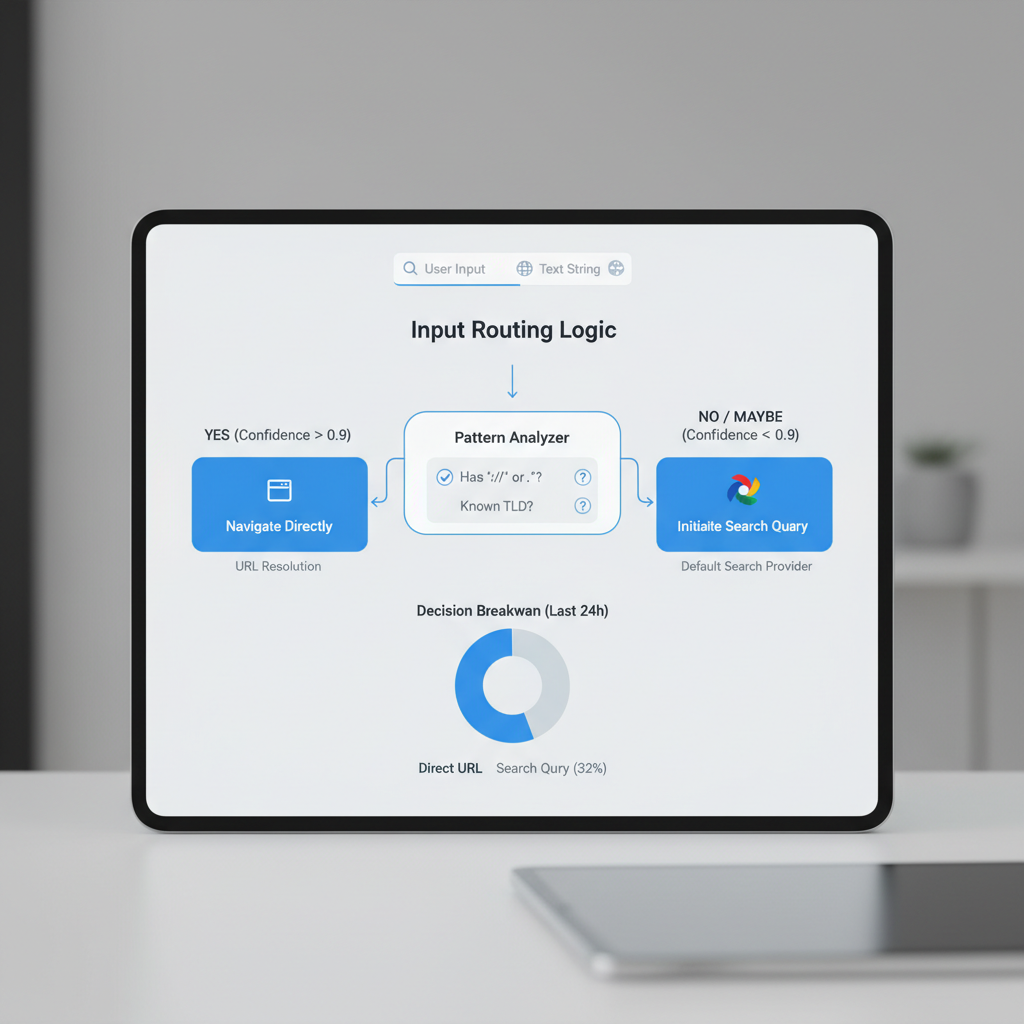
Browsers use pattern recognition and stored data to decide if you typed a search or a web address. They scan your input for clues like dots, slashes, or familiar domain endings to guess if you want to visit a website or run a Google search.
Dots and slashes: Typing news.com or mybank/login signals a domain or path, so the browser loads the site directly.
Plain words and phrases: If you type weather tomorrow or python list comprehension without dots or slashes, browsers send this to your default search engine, usually Google, and show search results.
Stored predictions: Autocomplete can change this. If you’ve visited cnn.com before, typing cnn may prompt the browser to suggest the full URL. Selecting that suggestion takes you to the site, not to a search. Bookmarks work the same way: enter a keyword tied to a saved site, and the browser loads the page.
Different browsers, similar rules: Chrome, Firefox, Safari, and Edge all use these basic rules, but the details vary. Chrome prompts with Google search predictions, Firefox may prioritize bookmarks, and Safari sometimes waits for more input, especially on mobile.
To force a direct URL, type the full address like https://example.com. To guarantee a search, add a question mark or space at the start, or use a search engine shortcut like ? python list comprehension in Chrome.
Modern address bars: more than just URLs
Modern address bars do more than load web pages. The omnibox (the combined address and search bar in browsers like Chrome) lets you type a URL, search Google, or jump to a site’s internal search with shortcuts. You don’t need to remember exact web addresses. Start typing a product, question, or partial URL, and the bar predicts what you want.
Autocomplete pulls from your browsing history, bookmarks, and trending search results to suggest the fastest route. Typing “what” might instantly offer “What is an omnibox?” or “What time is it in Tokyo?” based on your habits and popular queries.
Voice search is built in. Tap the microphone icon in Chrome’s address bar and speak your query. This is especially useful on mobile.
You can also customize the bar with browser extensions. Some add password management, block trackers, or change how autocomplete works. Others let you search specific sites directly from the bar with a keyword, like typing “wiki Einstein” to search Wikipedia.
The address bar is now your launchpad for the web. It’s where you start every search and navigation.
Security and privacy: risks of searching vs. typing URLs
Phishing and typosquatting risks
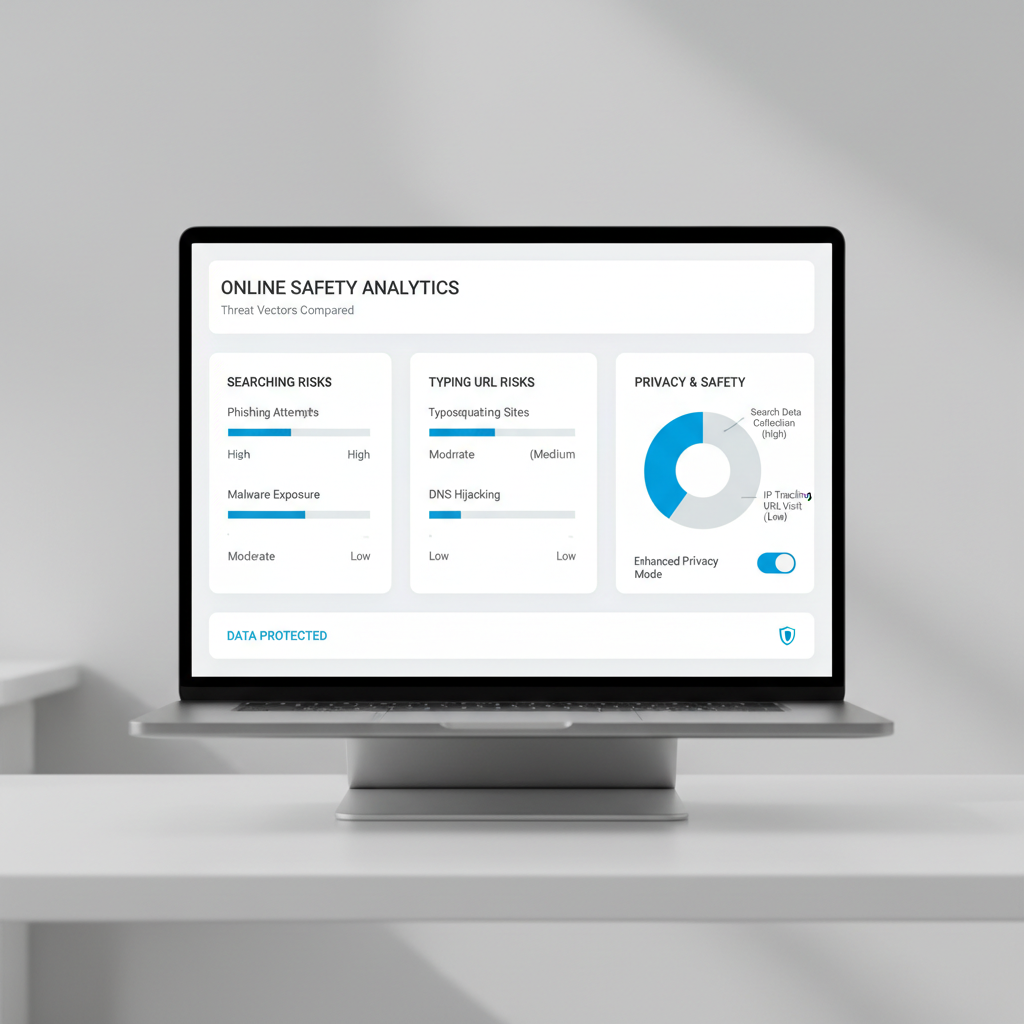
Entering a website address directly is safer if you type the correct URL. A typo can land you on a phishing or typosquatting site designed to steal your credentials. Attackers buy domains like amaz0n.com or goggle.com to catch these mistakes. Entering your login details on a fake site can compromise your account.
Searching vs. typing: privacy and safety
When you use the address bar to search for a site by typing a single word like amazon instead of the full URL, your browser may run a search engine query instead of taking you directly to the site. This exposes you to two risks:
- Malicious ads: Search results can include sponsored links that impersonate legitimate sites.
- Fake results: Attackers buy ads or optimize fake sites to appear above the real one.
Not every search engine filters out these threats equally well. If you always search Google for site names, watch for the “Ad” label and double-check URLs before clicking.
How browsers help
Modern browsers flag obvious typosquatting domains or warn about dangerous sites. Browser privacy settings control how much of your search and browsing history gets shared or stored. For sensitive tasks, use private browsing and keep your software up to date.
Real-World Example: The Single-Word Trap
If you type “amazon” in the address bar and hit Enter, Chrome or Firefox may treat it as a search, not a direct visit. You end up on a Google search results page, not amazon.com. This extra step increases the risk of clicking a fake or sponsored link.
Bottom line: Typing a full URL you trust is safest. If you rely on search, stay alert for lookalikes and paid imposters. Double-check the address before pressing Enter.
Address bar problems: fixing hijacking and unwanted redirects
Address bar hijacking turns your browser’s main search bar into a tool for spam sites, junk ads, or fake search results. Usually, a rogue extension or malware has taken over your default search engine. If you type a URL or search Google from the address bar and land somewhere unexpected, you’re likely a victim of search hijacking.
Check your default search engine
Start with your browser’s settings. In Chrome, click the three dots, go to Settings, then Search engine. Make sure Google (or your preferred provider) is set as the default. The same process applies in Edge and Firefox, look for the “Search” or “Privacy & Security” sections.
Remove malicious extensions
Extensions cause most hijacks. Open your extensions list (chrome://extensions for Chrome) and disable anything you don’t recognize or use. Remove extensions that claim to “enhance search” or “protect privacy” but reroute search results.
Scan for malware
If you’re still getting hijacked or redirected, run a malware scan. Use Windows Defender or Malwarebytes, both catch common browser hijackers.
Lock down privacy settings
Modern browsers let you restrict how extensions and sites change your settings. In Chrome, go to Privacy and security > Site settings. Turn off permissions for sites you don’t trust.
Use built-in reset tools
If nothing else works, reset your browser. In Chrome, go to Settings > Reset settings > Restore settings to their original defaults. Firefox and Edge have similar reset options under their Help or Troubleshooting menus.
A common scenario: after installing a free PDF tool, Chrome users find their address bar sending queries to an unknown search engine. Removing the extension and resetting Chrome restores normal address bar behavior.
Protect your address bar. If you see strange redirects, act quickly. The longer you wait, the harder it is to remove unwanted changes.
SEO and accessibility: how address bar use impacts your site
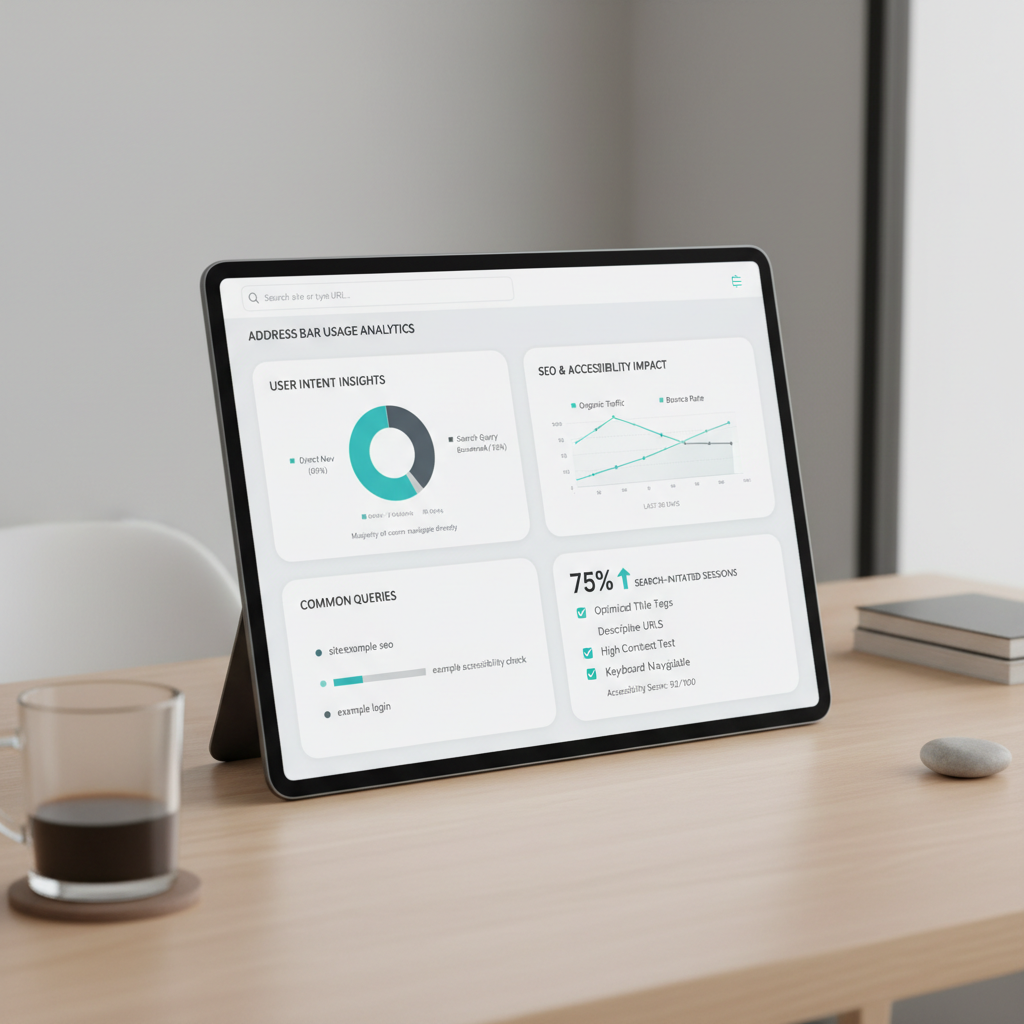
A clean, memorable URL makes it easier for users to type your site directly into the address bar. For example, example.com/jobs is easier to remember and enter than example.com/category?id=42. When users can recall and type your URL, you reduce reliance on search engines and build trust.
Search engines like Google do not use address bar behavior, such as whether someone types your URL or searches for your site, as a direct ranking factor. Your position in search results depends on content quality, relevance, and technical SEO, not how users arrive. However, a clear and relevant URL can improve your click-through rate when it appears in search, since users are more likely to trust and select a professional-looking link.
URL structure also affects discoverability. Short, descriptive URLs are easier for users to remember, share, and revisit. They help search engines understand your site’s hierarchy and content. For instance, example.com/accessibility-features signals both the topic and the page’s purpose, which helps with SEO and user navigation.
Accessibility features matter. Screen readers and voice input tools often rely on clear URLs for navigation. A user with a disability might use voice commands to “go to example.com/contact,” so a logical, simple URL structure supports their experience. Complicated or cryptic URLs can create barriers.
URL shorteners and custom domains can improve usability. If you need to share a long or complex link, a tool like Bitly or a branded short domain makes it easier to type and remember. For example, bit.ly/ourreport2024 is simpler than a long tracking URL. Branded options like yourbrand.link/demo tend to inspire more trust.
Bottom line: While address bar use itself doesn’t affect SEO rankings, your URL choices shape how easily users can find, remember, and access your site, especially for those relying on accessibility features. Clean, logical URLs pay off.
Automate SEO and content publishing with Seobase
Seobase eliminates manual SEO and content publishing tasks. Instead of toggling between tools and spreadsheets, you get a connected workflow for keyword research, content planning, and publishing, all with automation.
Automated research and planning: Seobase scans search results and Google data to spot keyword opportunities for your site. You get a content calendar tailored to your niche, without hours spent typing keywords or parsing spreadsheets.
AI-powered writing and publishing: Once your calendar is set, Seobase’s AI drafts articles based on your target keywords and posts them straight to your CMS. For example, if you want to target “google type url in address bar,” Seobase generates a brief, writes the article, and publishes it automatically.
Integrated backlink workflow: Seobase tracks backlink opportunities, manages outreach, and brings approvals into one dashboard. You can review, approve, or reject link exchanges in a few clicks, so you never miss a chance to boost your search engine visibility.
Less manual work, more ranking: This connected system means you spend less time on repetitive tasks and more time refining your strategy or reviewing results. You move from research to ranking improvement without manual steps.
Seobase is built for operators who want to scale their organic reach without scaling up their workload. It automates the SEO workflow from search to publish, so your site climbs the rankings while you focus on growth.
Ready to automate your SEO workflow? Try Seobase for streamlined content and backlink management.
Key takeaways: navigating and searching smarter in 2026
How browsers decide: search or navigate
Your browser’s address bar, or omnibox, acts as both a navigation tool and a search box. If you type a full web address like www.example.com and hit Enter, the browser takes you straight there. If you enter something less specific, such as “best SEO tools,” it sends your query to your default search engine, usually Google, and shows you search results.
Safety first: control where you land
Typing the exact URL keeps you safer. It reduces the risk of landing on lookalike scam sites that sometimes rank in search results. For sensitive accounts, always type the full address and look for the padlock icon. Want more privacy? Adjust your browser’s settings to block trackers or switch on private browsing. Chrome, Firefox, and Safari all let you tighten privacy controls in a few clicks.
Smarter SEO work: automate with Seobase
Manual site checks waste hours. Use automation tools like Seobase to streamline your SEO workflow. Seobase can track keyword rankings and audit your site automatically, so you don’t have to run each report by hand. The export defaults to PDF, so sharing updates with your team or clients is two clicks away.
Make the omnibox work for you. Know when you’re searching and when you’re navigating, stay safe with full URLs, and let automation handle the SEO grunt work. That’s how you search smarter in 2026.
Frequently asked questions
What does ‘search Google or type a URL’ mean?
It’s the prompt shown in your browser’s address bar (Omnibox), letting you either search Google directly or enter a website address to go there. The browser decides which action to take based on what you type.
How does my browser decide whether to search or go to a website?
Browsers use heuristics: if your input looks like a URL (contains a dot, slash, or domain pattern), it navigates directly. Otherwise, it performs a search using your default search engine.
Is it safer to type a URL or search for a site on Google?
Typing the full, correct URL is usually safer, as searching can expose you to ads or phishing sites. However, mistyping a URL can lead to typosquatting risks, so double-check addresses.
What should I do if my browser’s address bar is not working correctly?
Check for unwanted extensions, reset your default search engine, and scan for malware. Most browsers offer a reset tool to restore original settings if problems persist.
Can I change the default search engine in my browser’s address bar?
Yes. In Chrome, Firefox, Edge, and Safari, you can select your preferred search engine in the browser’s settings under ‘Search’ or ‘Default Search Engine.’
What is the difference between the omnibox and a traditional address bar?
The Omnibox (in Chrome and similar browsers) combines the address bar and search box, letting you search, navigate, and get suggestions in one place. Traditional address bars only accepted URLs.
How do autocomplete and bookmarks affect address bar behavior?
Autocomplete uses your browsing history, bookmarks, and predictions to suggest sites or searches as you type, helping you navigate faster and more accurately.
What are the risks of mistyping a URL in the address bar?
Mistyping a URL can lead to typosquatting sites designed to mimic real ones, potentially exposing you to phishing or malware. Always double-check before pressing Enter.
Related reading
- Other search engines to try in 2026 beyond google
- Search or type URL: how to navigate and search smarter
- Search Google or type URL: how the omnibox works
Leave a Reply